Trade history
Review completed trades, expand fills, and compare trade-level performance.
See the whole trade, not just the result.
Trade History groups completed trades into a reviewable record, then lets you open one trade to inspect its fills, performance, and execution details.
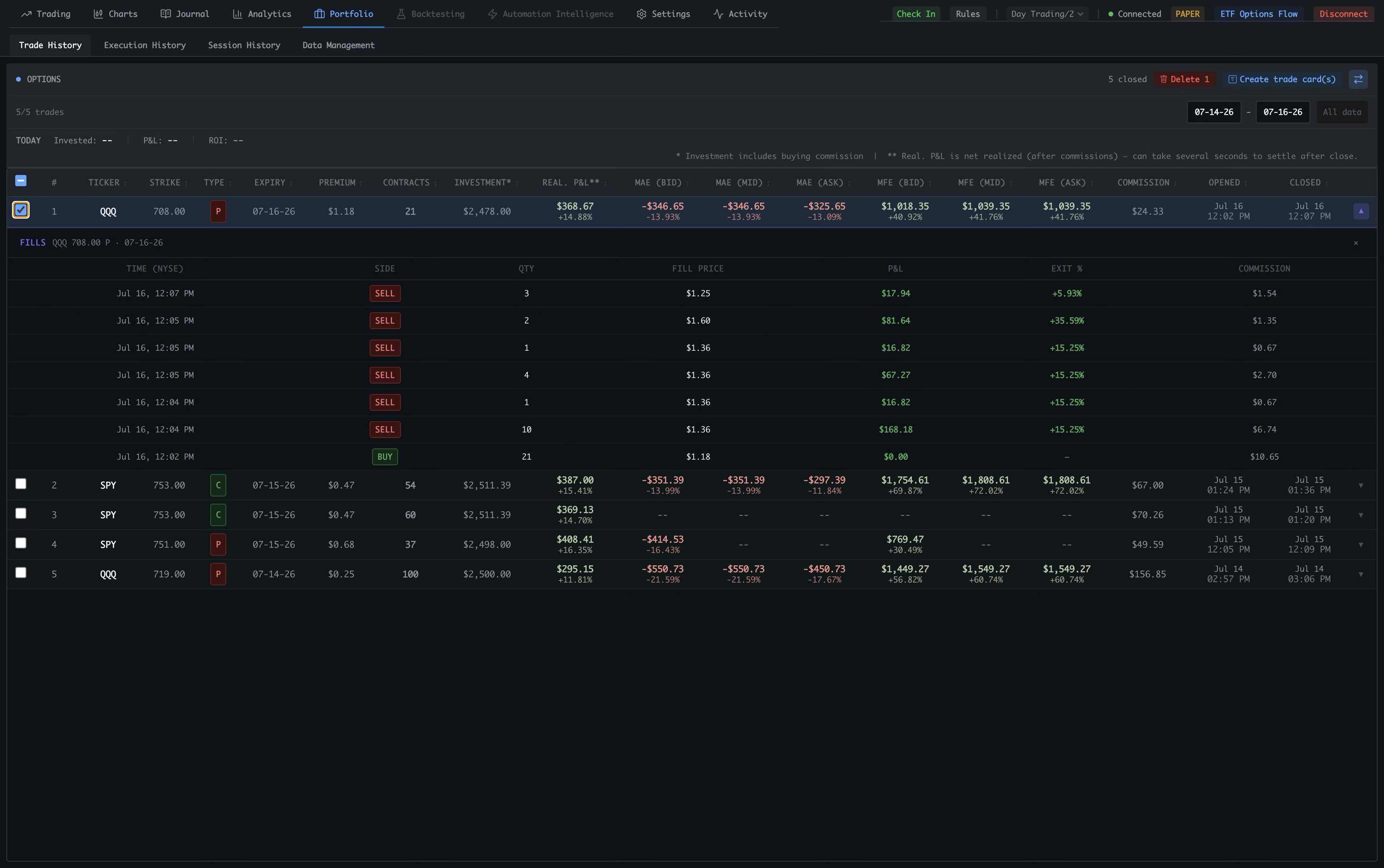
Choose a Portfolio view
Portfolio keeps Trade History, Execution History, Session History, and Data Management in one focused area. Trade History is selected here.
Set the review scope
Use the date range and All data controls to define what is included. The header shows how many trades are currently in the record.
Use trade-level actions
Delete selected records when needed, or create shareable trade cards from the selected trade using the controls in the upper-right corner.
Read the trade summary
Each row brings together ticker, strike, type, expiry, premium, contracts, investment, realized P&L, MAE, MFE, commission, and opened and closed times.
Expand the execution story
Open a trade to reveal its fills. The expanded section keeps the selected contract and its exact entry and exit activity together.
Inspect every fill
Review time, side, quantity, fill price, P&L, exit percentage, and commission for each execution that made up the trade.
Compare the rest of the record
The remaining rows make it easy to compare trades across symbols, outcomes, risk, efficiency, and execution dates.
Keep account state visible
The global header keeps the account, connection, paper or live mode, ETF Options Flow, and disconnect controls available while you review history.
Sharable trade cards
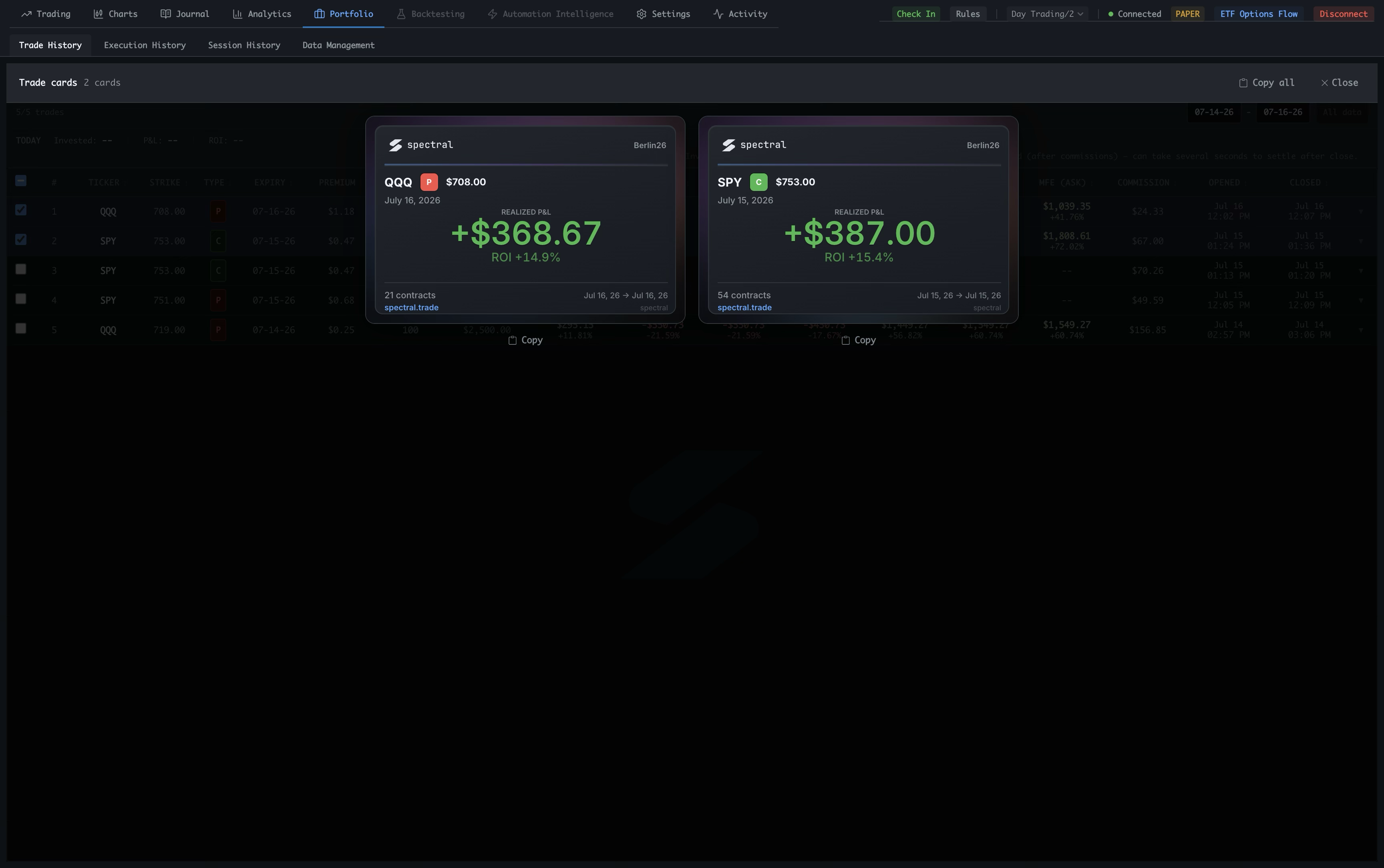
Select any number of trades in Trade History, create high-definition cards with one click, and copy them directly into a message, document, or post.
Select the trades
In Trade History, select one trade or any number of trades using the checkboxes. There is no need to create cards one trade at a time.
Create the cards
Click Create trade card(s). Spectral generates one trade card for each selected trade and opens them together in the card view.
Choose the detail
Adjust the level of detail shown on the cards so the shared image contains exactly the context you want to show.
Copy and share
Copy an individual card with Copy, or use Copy all for the full selection. Paste the high-definition cards directly wherever you want to share them.
One trade, one complete record. The history view connects the trade summary to every execution so the result can be understood in detail.