Trading view
Understand the setup sidebar, active-trade tables, account state, and workspace controls around the Trade Manager.
See the whole trading workspace at once.
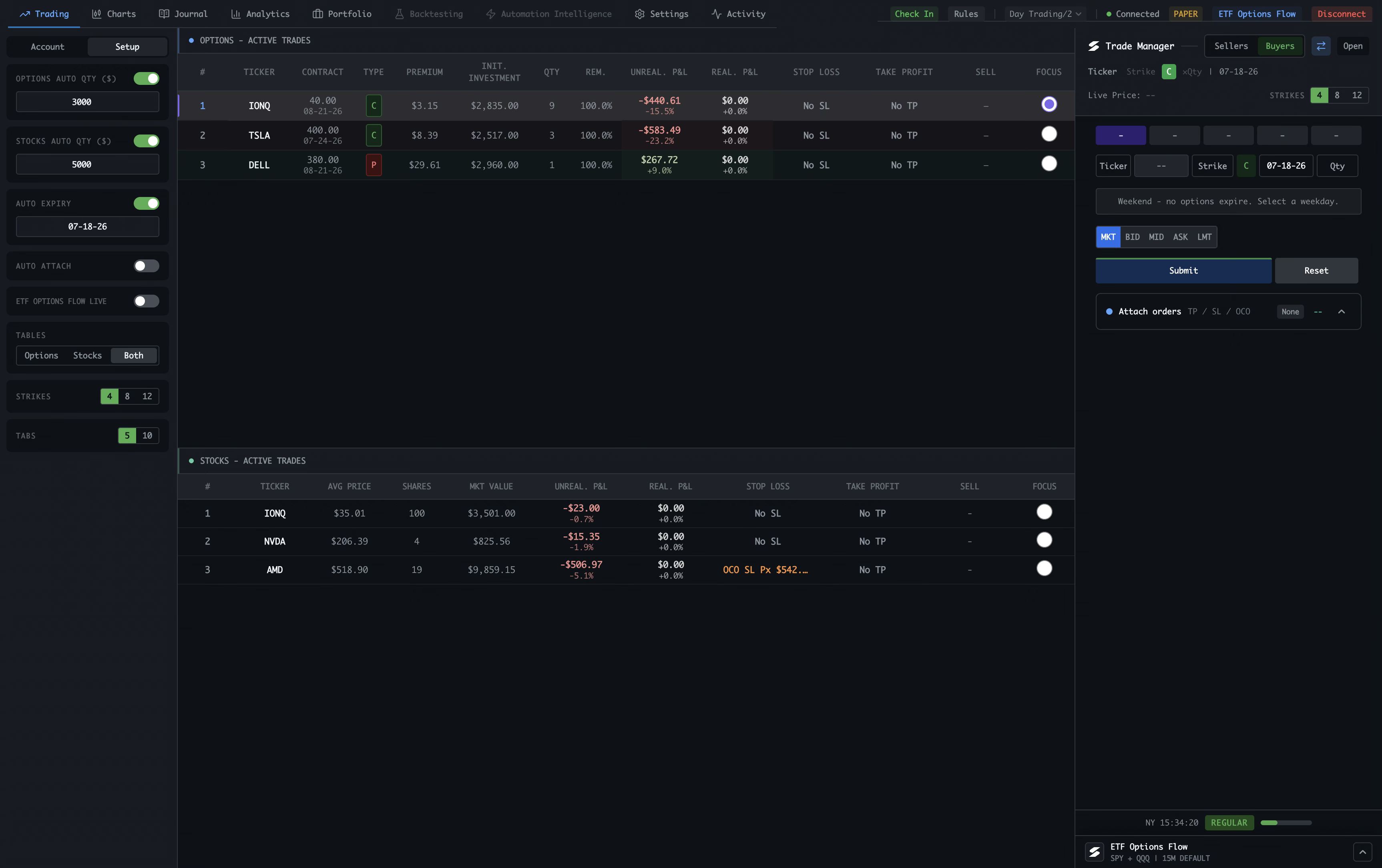
Trading brings setup controls, active positions, account state, and the Trade Manager together. Each area stays visible so you can move from context to action without losing the thread.
Move through the workspace
The top navigation switches between Trading, Charts, Journal, Analytics, Portfolio, Backtesting, Automation Intelligence, Settings, and Activity. Trading is the active view here.
Set trading defaults
The Account / Setup sidebar keeps the recurring defaults close: options and stock auto quantities, auto expiry, auto attach, and live ETF Options Flow.
Shape the tables
Choose whether to show Options, Stocks, or Both. The Strikes and Tabs controls decide how much contract and trade context is visible at once.
Review active options trades
The upper table keeps open options positions together with contract, type, premium, initial investment, quantity, remaining size, P&L, protection, sell, and focus controls.
Review active stock trades
The lower table mirrors the same live view for stocks, with average price, shares, market value, P&L, protection, sell, and focus controls.
Trade Manager, always beside you
The Trade Manager is docked on the right side of the Trading view. It is the focused place to prepare or manage an order while the active-trade tables stay visible.
Know your connection state
The top-right controls show check-in, rules, the selected account, connection state, paper or live mode, ETF Options Flow, and Disconnect.
Keep the session in view
The footer keeps the current time, regular or extended session state, and session progress visible while you work.
A connected workspace, not a collection of panels. The Trade Manager sits beside your active trades so the information needed for an order stays close to the action.